Sidekick CLI
The Sidekick CLI provides a full-screen terminal dashboard for monitoring agent sessions — standalone, no VS Code required. It reads from the same ~/.config/sidekick/ data files the VS Code extension writes.
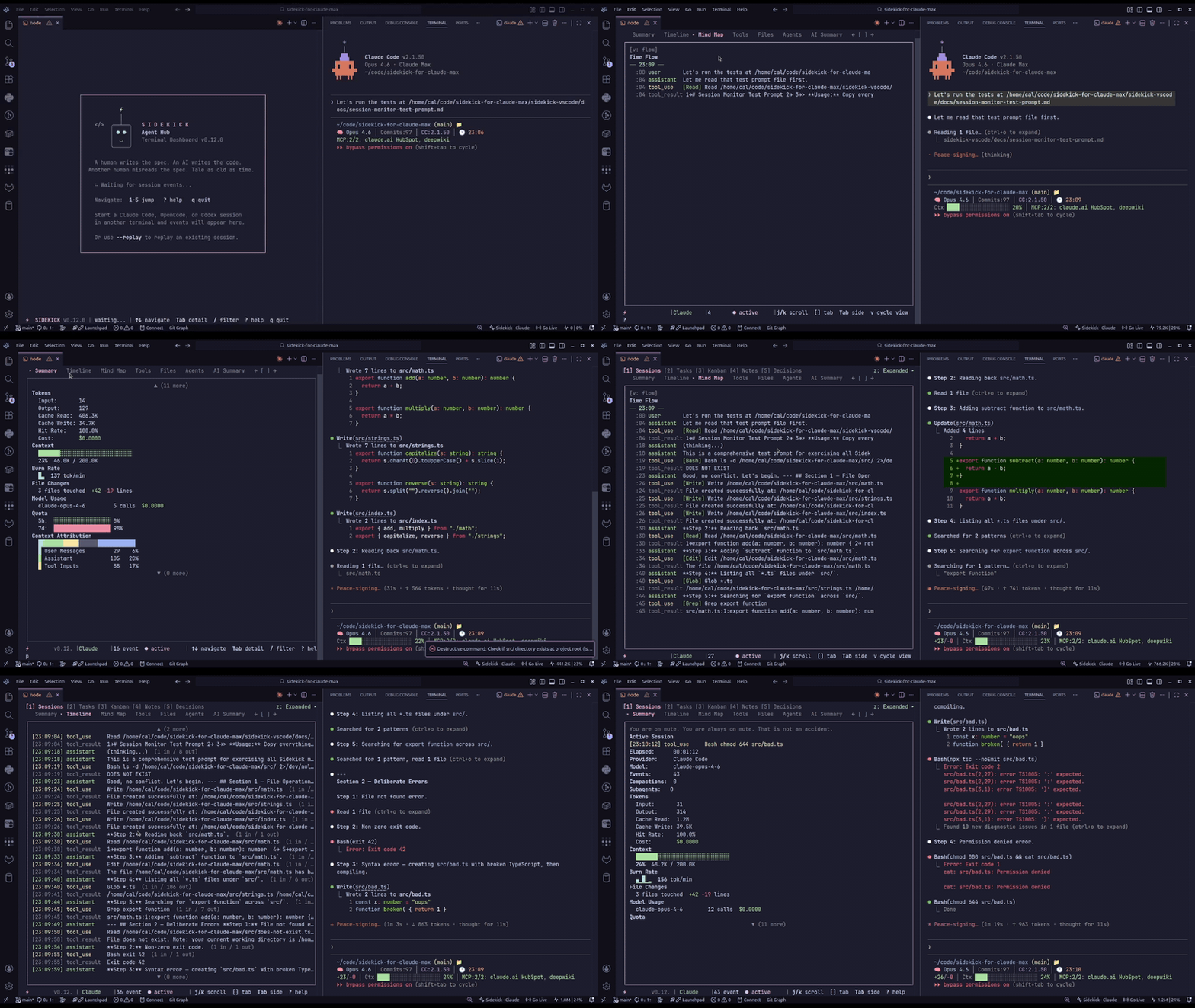
Package name vs binary name
The npm package is sidekick-agent-hub, but the binary it installs is called sidekick. After installation, run sidekick dashboard — not sidekick-agent-hub.
Replay and Recovery
Selecting a session in the picker loads its history. When starting with --session <id>, add --replay to include earlier events; without it, the dashboard follows new activity only. Claude Code and Codex can reuse compatible complete-history checkpoints. Live-only runs never replace those checkpoints, and OpenCode replays from the start when history is requested. Doctor honors --provider and treats unused integrations as informational.
Installation
Requires Node.js 20+.
Or build from source:
This compiles sidekick-shared (the data access library) and sidekick-cli (the binary). The CLI is output to sidekick-cli/dist/sidekick-cli.mjs.
Quick Start
cdinto your project directory- Run
sidekick dashboard - The dashboard auto-detects your project path and session provider
- Press
?to see all keybindings
If you have sessions from multiple providers, the most recently active one is selected automatically. Override with --provider.
Command Reference
| Flag | Description |
|---|---|
--project <path> |
Override project path (default: current working directory) |
--provider <id> |
Session provider: claude-code, opencode, codex, or auto (default) |
--session <id> |
Follow a specific session by ID (default: most recent or session picker) |
--replay |
Replay existing events from the beginning before streaming live |
--no-mouse |
Start with mouse capture disabled so terminal text selection works (toggle with M) |
--no-color |
Disable colored output for any command (also honors NO_COLOR) |
--offline |
Price from the cached catalog only; never refresh it over the network (also SIDEKICK_OFFLINE=1) |
--output-file <path> |
Write everything a command prints to stdout into a file, without colour codes (not for dashboard or mcp) |
--json |
Output as JSON; a global flag honoured by the one-shot commands below |
Examples
# Launch for the current directory
sidekick dashboard

# Monitor a specific project
sidekick dashboard --project ~/code/my-app

# Force Claude Code as the provider
sidekick dashboard --provider claude-code

# Follow a specific session with full replay
sidekick dashboard --session abc123 --replay
Session Dump
Dump session data as a text timeline, JSON metrics, or markdown report for sharing or archiving.
| Flag | Description |
|---|---|
--list |
List available session IDs for the current project |
--csv |
With --list, print the session table as CSV |
--limit <n> |
Maximum sessions listed with --list (default: 50) |
--format <fmt> |
Output format: text (default), json, or markdown |
--width <cols> |
Terminal width for text output (default: auto-detect) |
--expand |
Show all events including noise |
--session <id> |
Target a specific session (default: most recent) |
--prompts |
Dump human prompts grouped by session (see below) |
Global flags --project, --provider, and --json also apply (see above); --json on a non-list dump is the same as --format json. Token totals count every billed bucket (input, output, cache writes, and cache reads), each API response or call once, and cost figures name their provenance (provider-reported or estimated from catalog pricing). When the session spawned subagents, text and markdown output add a Subagents (n) line (markdown also gets a per-agent Subagent Tokens table) and a Session total (incl. subagents). JSON output adds a tokenSummary block with mainThread, subagents, subagentTotal, and combined (main thread plus subagents).
Examples
# Dump the latest session as plain text
sidekick dump

# Export as markdown for sharing
sidekick dump --format markdown > session-report.md

# Full JSON export for tooling
sidekick dump --format json > session.json
Prompts by session
sidekick dump --prompts prints every prompt a person typed in a Claude Code or Codex session, grouped by session, so a whole session can be read or classified (intent, conflict, issues) at once. It uses the same human-prompt rule and fail-closed working-directory scope as collectPromptHistory() in sidekick-shared: prompts are untruncated, and slash commands appear as typed. Harness output, subagents, and SDK programs are left out.
| Flag | Description |
|---|---|
--session <id> |
One session by id or unique prefix (default: the most recent session with prompts) |
--all |
Every session of this project and its git worktrees, most recent first; cannot be combined with --session |
--since <time> |
Only sessions active since an ISO date, YYYY-MM-DD, or 7d / 24h; each is still returned whole |
--limit <n> |
At most this many sessions (default: 1, or no limit with --all; ignored with --session) |
--signals |
Add interrupts, rejected and failed tool calls, compactions, API errors, and rollbacks |
--replies |
Add the agent's final reply to each prompt |
--format <fmt> |
text (default), markdown, json (with bounds and stats), or jsonl (one session per line) |
Both providers are read unless --provider claude-code or --provider codex is given; OpenCode is not supported. Each session carries its time span, working directories, branches, and models, and a complete flag that is false when prompts were out of scope, a record was unreadable, or the session was cut at 256 MiB. Signals note the prompt they followed (afterOrdinal). A Claude tool rejection keeps the reason the person typed, in full, while tool and API error text is cut to 1024 characters. Codex logs do not mark rejections.
# Every prompt of the latest session
sidekick dump --prompts

# One JSON line per session active this week, with replies and signals, for a classifier
sidekick dump --prompts --all --since 7d --signals --replies --format jsonl > sessions.jsonl

# A readable markdown transcript of one session's prompts
sidekick dump --prompts --session 2420ca --replies --format markdown
Prompt History
Show recent user prompts across Codex sessions, newest first — a quick answer to "what was I working on?" that spans every workspace. Not to be confused with sidekick quota history, the quota utilization heatmap.
| Flag | Description |
|---|---|
--limit <n> |
Maximum prompts to show (default: 20) |
--path <sessionId> |
Print the rollout transcript path for a session ID or prefix |
The global --json flag emits machine-readable entries with full session IDs and ISO timestamps. The global --project and --provider filters do not apply: history is cross-workspace and Codex-only.
Codex-only for now: Codex records every prompt in a global ~/.codex/history.jsonl, which is what this command reads. Claude Code and OpenCode keep prompts inside per-session files and are not yet supported; for Claude Code and Codex prompts grouped by session, use sidekick dump --prompts.
Examples
# The twenty most recent prompts
sidekick history

# Jump to a session's transcript file
less "$(sidekick history --path 0198a3c2)"

# Machine-readable entries
sidekick history --json | jq '.[0]'
HTML Report
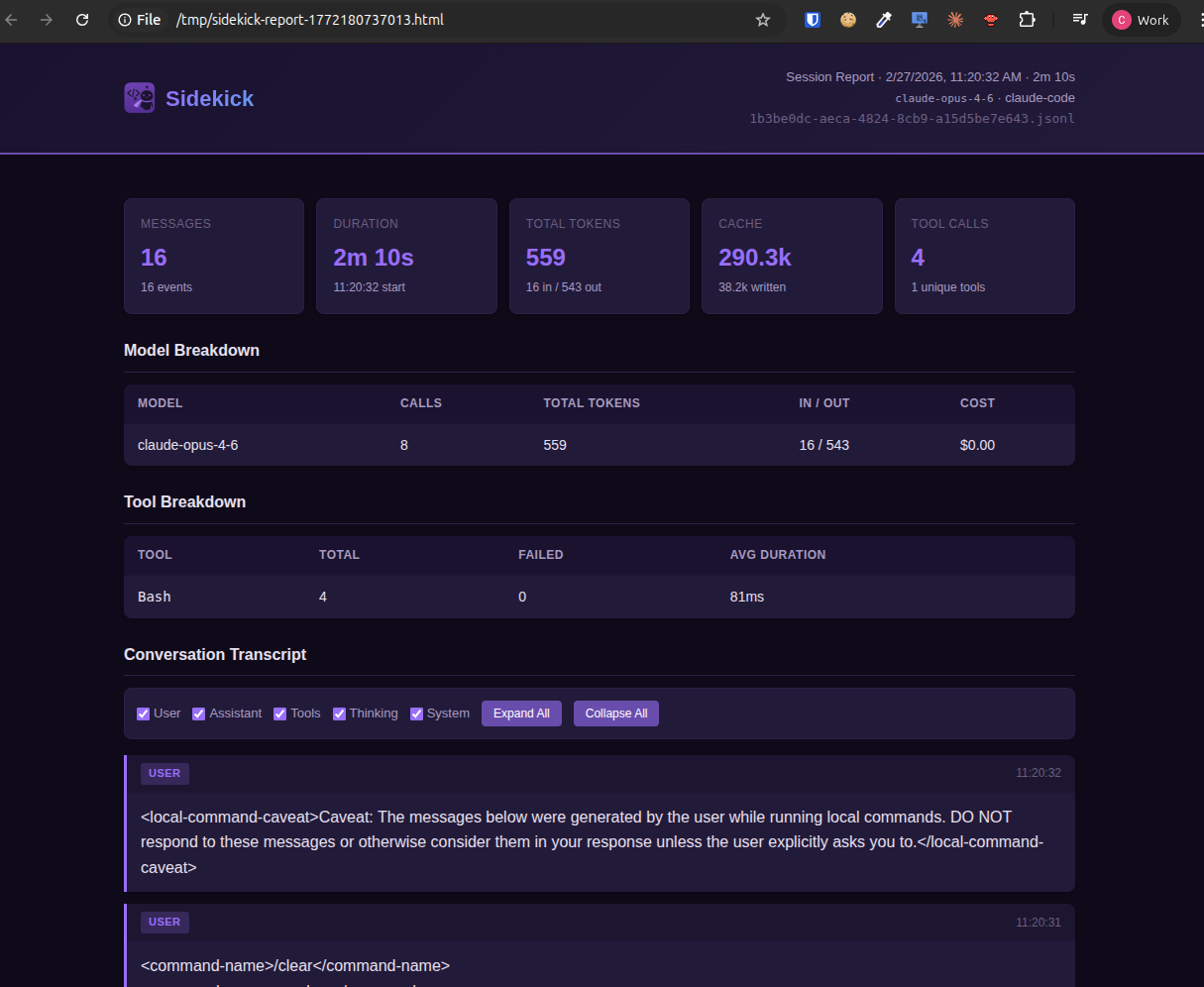
Generate a self-contained HTML session report and open it in the default browser. Includes full transcript with collapsible thinking blocks and tool detail, token/cost stats, model breakdown, and tool-use summary — zero external dependencies. The stats cards show "Total (incl. cache)" and the cache hit rate. When the session spawned subagents, the total card becomes the main thread's total and Subagents (n) and Session total (incl. subagents) cards are added.
| Flag | Description |
|---|---|
--session <id> |
Target a specific session (default: most recent) |
--output <path> |
Write to a specific file (default: temp file) |
--theme <theme> |
Color theme: dark (default) or light |
--no-open |
Write the file without opening the browser |
--no-thinking |
Omit thinking blocks from the transcript |
Global flags --project and --provider also apply (see above). With the global --json flag the command prints { "path", "sessionPath", "sessionFileName", "bytes" } to stdout instead of the "Report written to" note.
Examples
# Generate report for the latest session and open in browser
sidekick report

# Light theme, save to a specific file
sidekick report --theme light --output ~/reports/session.html

# Generate without opening browser
sidekick report --no-open --output session.html
You can also press r in the TUI dashboard to generate and open a report for the current session.
Extract Session Assets
Extract actionable items from recent Claude Code and Codex chats for exactly the current project directory:
- URLs from messages and web/tool inputs
- File paths validated against the filesystem, including optional
:line - Commands the agent presented for you to run in shell snippets or
$-prefixed lines - Plans from Claude plan mode and Codex finalized
Planitems
Results are merged across supported agents, sorted by recency, deduped, capped, and grouped by type. Text output labels each item with its source agent (claude or codex), and JSON output includes inChat plus per-item provenance (agent, sessionPath, and source) for downstream tools. The command intentionally uses exact-cwd scoping; it does not walk up or down the directory tree to avoid surfacing another project's chat data.
This feature was contributed by @B33pBeeps (Juan Fourie) and adapted from his MIT-licensed trawl project.
| Flag | Description |
|---|---|
--type <types> |
Comma list: url, path, command, plan (default: all). Aliases include urls, files, cmds, and plans |
--limit <n> |
Positive integer maximum items per type |
-i, --interactive |
Interactive picker; Enter opens URLs and copies paths, commands, or plans |
--json |
Emit grouped JSON for scripting; cannot be combined with -i |
Global flags --project and --provider also apply. --provider claude-code reads Claude Code only, --provider codex reads Codex only, and auto reads both. Invalid --type or --limit values fail fast with a clear error. OpenCode extraction is not supported yet.
Examples
# Grouped text output
sidekick extract

# Only links and file paths
sidekick extract --type url,path

# JSON with at most 10 items of each requested type
sidekick extract --limit 10 --json

# Fuzzy picker with copy/open actions
sidekick extract -i
Data Commands
Standalone commands that query Sidekick's persisted project data without launching the TUI dashboard. All accept the global flags --project, --provider, and --json.
Daily brief and diagnostics
sidekick today       # cache-only yesterday/tasks/decision/handoff/quota brief
sidekick doctor      # diagnose project, session, account, provider, and dependency health
sidekick --provider codex doctor  # diagnose Codex monitoring
sidekick statusline  # fast one-line account/quota/burn-rate footer
doctor checks the selected session provider (--provider, or auto-detection). Missing sessions or dependencies for that provider include a repair hint; unused integrations and missing saved accounts are informational. Existing sessions can be monitored without adding a Sidekick account.
today and statusline bypass account bootstrap, pricing hydration, and quota network calls. Use Sidekick: Install Statusline in VS Code to merge the status-line command into Claude Code settings; uninstalling it restores the previous block.
When Claude Code runs sidekick statusline as its status line it pipes a JSON document on stdin. Sidekick reads it and appends context usage, session cost, and prompt-cache hit rate to the line, and — for Claude.ai Pro and Max subscribers — writes the official five-hour and seven-day rate limits into the quota snapshot and history stores. Every other command and both dashboards then see authoritative quota without a network call. Cached quota older than five minutes is labelled with its age. Set SIDEKICK_STATUSLINE_STDIN=0 to ignore stdin.
State file
Every status-line run, and both dashboards on their refresh ticks, also write ~/.config/sidekick/state.json (honouring SIDEKICK_CONFIG_DIR) for external tools such as tmux status bars, menu-bar apps, and scripts. It is a public, versioned contract: schemaVersion is 1, fields are only ever added, and sidekick-shared/schemas exports the matching zod schema (sidekickStateFileSchema). The file is rewritten atomically only when its content changed, so an idle prompt costs one small read.
| Field | Contents |
|---|---|
schemaVersion |
1 |
writtenAt |
ISO timestamp of the write |
writer |
statusline, cli-dashboard, or vscode-dashboard |
account |
{ providerId, id, label } for the active Claude Code or Codex account, or null |
quota.claude / quota.codex |
{ fiveHour, sevenDay, source, capturedSource, capturedAt, ageMs, freshness } per provider, or null when unavailable |
context |
{ usedPercentage, contextWindowSize, totalInputTokens, totalOutputTokens, totalTokens? } of the live session, or null. totalTokens (0.27.3+, optional) is the session total — cache and subagents included — written by both dashboards; the status line leaves it out |
session |
{ sessionId, cwd, model, costUsd, durationMs, linesAdded, linesRemoved, promptCacheHitRatio }, or null |
billingBlock |
The open five-hour block (start, end, isActive, tokens, costUsd, costProvenance, burnRatePerMinute, projectedTokens, projectedCostUsd, remainingMs) when a dashboard computed it, else null |
Values that a writer cannot know are null rather than omitted — the status line never computes the billing block, and the dashboards do not see prompt-cache statistics.
# tmux: show the five-hour window and session cost
jq -r '"5h \(.quota.claude.fiveHour.utilization)% · $\(.session.costUsd)"' ~/.config/sidekick/state.json
Quick capture
sidekick tasks add "Investigate retry spike"
sidekick tasks done <task-id>
sidekick note add "Migration requires a cache clear" --type gotcha
sidekick decision add "Use SQLite" --rationale "Local and portable"
Capture commands atomically merge with the same per-project stores used by VS Code. An open Kanban board refreshes when a CLI write lands, without restarting the extension. With the global --json flag each capture command prints the stored record ({ ok, action, task | note | decision }) instead of a sentence.
External handoff
sidekick handoff open \
  --url-template 'mytool://session/{sessionId}?provider={provider}' \
  --session <session-id>
Templates accept identifiers only: {sessionId}, {provider}, and {projectPath}. Use --no-open to print the rendered URL. VS Code exposes the same behavior through sidekick.handoffUrlTemplate and Sidekick: Open External Session Handoff.
MCP facts server
sidekick mcp serves seven read-only facts tools to Claude Code or Codex. See MCP Facts Server for registration and the complete tool list.
Tasks
List persisted tasks for the current project. Tasks carry over across sessions from ~/.config/sidekick/tasks/.
| Flag | Description |
|---|---|
--status <status> |
Filter by status: pending, completed, or all (default: all) |
Examples
# List all tasks
sidekick tasks

# Show only pending tasks
sidekick tasks --status pending

# JSON output for scripting
sidekick tasks --json
Decisions
List architectural decisions extracted from sessions. Stored in ~/.config/sidekick/decisions/.
| Flag | Description |
|---|---|
--search <query> |
Filter decisions by keyword |
--limit <n> |
Maximum number of decisions to show |
Examples
# List all decisions
sidekick decisions

# Search for decisions about database choices
sidekick decisions --search "database"

# Show the 5 most recent decisions as JSON
sidekick decisions --limit 5 --json
Notes
List knowledge notes (gotchas, patterns, guidelines, tips) attached to files in the current project.
| Flag | Description |
|---|---|
--file <path> |
Filter notes by file path |
--type <type> |
Filter by type: gotcha, pattern, guideline, or tip |
--status <status> |
Filter by status: active, needs_review, stale, or obsolete |
Examples
# List all notes
sidekick notes

# Show only gotchas
sidekick notes --type gotcha

# Notes for a specific file
sidekick notes --file src/services/AuthService.ts

# Active tips as JSON
sidekick notes --type tip --status active --json
Stats
Show historical usage statistics — tokens, costs, model breakdown, tool usage, and recent daily activity. Reads from ~/.config/sidekick/historical-data.json, which the VS Code extension writes as sessions end and sidekick import backfills from session logs (see below); for reports computed straight from the logs, use sidekick daily and friends. Unknown-model rows render as —; any unpriced models encountered are listed in the footer so missing pricing coverage is visible. "Total (incl. cache)" counts input, output, cache writes, and cache reads — the same total every other Sidekick surface shows. Sessions recorded before 0.27.3 are not rewritten and keep their old, inflated Claude Code and Codex totals (split JSONL lines and repeated token_count events were counted more than once).
| Flag | Description |
|---|---|
--csv |
Print every recorded day as CSV: date, sessions, messages, token buckets, total, cost, unpriced models |
Use the global --json for the raw store.
Examples
# Print a formatted stats summary
sidekick stats

# Export raw historical data as JSON
sidekick stats --json

# Every recorded day as CSV, straight into a spreadsheet
sidekick stats --csv --output-file usage.csv
In text mode the Top Failing Tools block lists each tool's failures over the last 7 and 30 days with a trend arrow (↑ worse than the 30-day weekly average, ↓ better, → in line), the same rule the VS Code Health tab uses. --json output is unchanged.
Import
Fold every finished session from every provider with session data (Claude Code, Codex, and OpenCode; the global --provider narrows to one) into the history store behind sidekick stats, sidekick today, and the VS Code History tab. Each session is read once through the same unified stats path the extension uses, so both hosts credit sessions identically: cache-inclusive per-model totals, cost with unpriced markers, and a tool success/failure split. The import is idempotent — files already imported, sessions already persisted by the live monitor, and files modified in the last minute are skipped — and the store is written in one short locked update that re-checks the on-disk state, so a concurrent extension write is never overwritten. Use --since (ISO date, YYYY-MM-DD, or a relative window such as 30d) to limit the scan, and the global --json for the result (sessionsImported, filesSkipped, filesUnavailable, and so on).
Billing blocks
Five-hour billing blocks computed straight from session logs, for the auto-detected or --provider session provider. A block opens at the first usage event (aligned down to the UTC hour, as ccusage does), lasts five hours, and a gap longer than five hours or an event past the block's end opens a new one. Each row shows the block's cache-inclusive token total, cost, burn rate (tokens per minute over the block so far), and — for the block that is still open — the projected end-of-block tokens and cost and the time remaining.
Session logs are read once and cached under ~/.config/sidekick/usage-cache/ by size and modification time, so repeat runs only re-read sessions that changed; --no-cache forces a full re-read. The cache format moved to version 2 in 0.27.3; caches written by earlier versions rebuild automatically. The table is a local estimate. When sidekick statusline has persisted an official rate-limit sample from Claude Code, it is printed beneath the table as Official (status line) with its age so the two can be compared.
| Flag | Description |
|---|---|
--active |
Only the block that is open right now (or a note that none is) |
--recent |
Blocks from the last three days (default) |
--since <time> |
Blocks since an ISO date, YYYY-MM-DD, or a relative window such as 7d, 24h, or 90m |
--csv |
One row per block: window, status, token buckets, cost, provenance, burn, projection |
--no-cache |
Re-read every session instead of using the usage cache |
Use the global --json for the full report (blocks, active, official, session and cache counts).
Examples
# The block that is open now, with its burn rate and projection
sidekick blocks --active

# A week of Codex blocks as CSV
sidekick --provider codex blocks --since 7d --csv

# Feed a status bar or script
sidekick blocks --active --json
Usage reports
sidekick daily   [--since <time>] [--until <time>] [--breakdown] [--by-project] [--utc] [--csv]
sidekick weekly  [...]
sidekick monthly [...]
sidekick sessions [...]
Usage computed straight from session logs, so they work for CLI-only users who never ran the VS Code extension (the store-backed sidekick stats still needs the extension's history). By default every provider with session data is read and shown side by side — Claude Code, Codex, and OpenCode in one table — and the global --provider restricts the report to one.
Rows are bucketed by the time of each usage event, on the local calendar unless --utc, so a session that crosses midnight is split across the days it actually ran in (the history store behind stats buckets by session start instead). Weeks start on Monday. sessions prints one row per session with its first event, project, calls, cache-inclusive total, cost, and models. Sessions are read once and cached under ~/.config/sidekick/usage-cache/ by size and modification time. Claude Code subagent transcripts (<session>/subagents/agent-*.jsonl) count toward their parent session. Each API response or call is counted once.
| Flag | Description |
|---|---|
--since <time> |
Window start: ISO date, YYYY-MM-DD, or a relative window such as 30d, 12w, 24h (defaults: 30 days, 12 weeks, 12 calendar months, 30 days) |
--until <time> |
Window end (default: now) |
--breakdown |
Per-model sub-rows under every row |
--by-project |
Group rows by project as well as provider |
--utc |
Bucket by UTC calendar days instead of local days |
--csv |
One row per bucket (and per breakdown sub-row): period, provider, project, model, token buckets, total, cost, provenance |
--no-cache |
Re-read every session instead of using the usage cache |
Column labels follow the shared vocabulary ("Total (incl. cache)"); costs carry their provenance in the footer and unpriced rows show —. Use the global --json for the full report (rows, breakdown, totals, providers, and cache counts).
Examples
# Last 30 days, every provider, one row per day
sidekick daily

# Per-model sub-rows, Codex only, keyed by UTC day
sidekick --provider codex daily --breakdown --utc

# A quarter of weeks as CSV
sidekick weekly --since 13w --csv --output-file weeks.csv

# Every session from the last day, for scripts
sidekick sessions --since 24h --json
Status
Check public service status for both Claude (status.claude.com) and OpenAI (status.openai.com). Shows indicator with color coding (green = operational, yellow = minor, red = major/critical), component associations, every unresolved incident the feed supplies with its link, and separate check and provider-update timestamps.
A failed check prints Status unavailable rather than implying normal operation; a feed that omits incident data prints Incident information unavailable. Public incidents do not establish why a particular request failed, and an operational status page does not prove your own connection works.
No command-specific flags. Use --json for machine-readable output. The JSON keeps the legacy claude, openai, and peak fields and adds serviceStatus: { claude, openai }; each result carries an availability discriminator (observed or unavailable), because the legacy indicator: "none" fallback cannot distinguish an operational page from a failed fetch. sidekick doctor --json likewise adds serviceStatus beside its legacy providerStatus.
Examples
When the active provider is claude-code, the status output is followed by a Claude Peak Hours block pulled from promoclock.co — see Peak Hours for background.
The dashboard also monitors status automatically, but only for the monitored provider — Claude for Claude Code sessions, OpenAI for Codex sessions, and no provider-status section for OpenCode. When degraded, the status bar shows a colored indicator and the Sessions panel Summary tab shows component associations, every unresolved incident, and the check and provider-update timestamps; unavailable or partial evidence is shown explicitly. Overlapping polls are coalesced and outstanding checks are cancelled when the dashboard stops polling.
AI summary failures in the dashboard use the same shared diagnosis as the extension: the message names the problem — missing or rejected credentials, an expired OAuth sign-in, an invalid provider session, a service or connection failure, a timeout, rate limiting, an execution-policy denial, a missing runtime, or a context limit — with a recovery hint. Sidekick does not sign in, change credentials, switch providers, or replay the request on your behalf.
Peak
Show whether Claude is currently in peak hours (weekdays 13:00–19:00 UTC) when session limits drain faster. Gated on the claude-code session provider — when the resolved provider is OpenCode or Codex, the command prints a "not applicable" message instead of calling the upstream endpoint.
Flags: --provider <id> (override auto-detected provider: claude-code, opencode, codex, auto). Use --json for machine-readable output.
Quota
Provider-aware quota and rate-limit display. The command detects the active provider and shows the appropriate data:
- Claude Code: Shows Claude Max subscription quota utilization — 5-hour and 7-day windows with color-coded progress bars, projected end-of-window utilization, and reset countdowns. Requires active Claude Code credentials (read from the system Keychain on macOS, or
~/.claude/.credentials.jsonon Linux/Windows). JSON output includesprojectedFiveHourandprojectedSevenDayfields. - Codex: Fetches the Codex usage API on every command — primary and secondary windows with progress bars, projected end-of-window utilization, and reset countdowns. The output also lists available reset credits and each credit's expiration. Session logs and cached samples are fallbacks if the API fails.
- OpenCode / z.ai: OpenCode itself provides no native rate-limit data, but when z.ai Coding Plan credentials are available,
sidekick quota --provider opencodecan auto-route to authoritative z.ai quota (5-Hour / Weekly, with projected end-of-window utilization). Usesidekick quota --provider zaito request it explicitly.
All providers render in a unified table with aligned now (current utilization), projected (estimated end-of-window utilization, shown as — when it can't be computed), and resets columns.
When quota data is unavailable, the command emits structured failure output instead of relying on a generic error string. JSON responses can include failureKind, httpStatus, and retryAfterMs so callers can distinguish auth failures, rate limits, transient network/server failures, and unexpected responses. In the CLI dashboard, the Sessions panel keeps a compact inline quota/rate-limit state visible even when data is unavailable, and quota failure toasts only appear when the failure state changes.
Quota commands and the MCP get_quota_status tool share these policies:
- Codex: always fetch the live API, including with automatic provider selection,
--provider codex, and--all. If the API fails, use the newer session or cached sample by capture time, preferring the cache on ties. Missing capture times count as oldest. - Claude and z.ai: reuse a persisted sample younger than five minutes when available; otherwise fetch the API, falling back to an older cached sample. Add
--refreshto ask the API first even when a fresh sample exists. Codex already does this on every command.
The Source row names the origin and age of fallback data, such as cached API sample from … (3m ago) or local session logs from … (1h ago), and turns yellow for aging or stale samples. A Refresh row explains a failed Codex API attempt. Dashboard refresh schedules are unchanged.
Use --json for machine-readable output; the payload includes resolution (snapshot-fresh, session, api, snapshot-aging, snapshot-stale, or unavailable), source, capturedSource, freshness, and ageMs. The failure descriptor retains an API failure even when fallback data is available.
Use --all to show Claude and Codex quota together in one run, plus z.ai when available. Providers are resolved in parallel using the same policy as the single-provider view; live values can change between calls. Each provider renders independently — if one provider's quota is unavailable, its error is shown inline and the others still print. --all --json emits a provider-keyed payload.
Examples
# Check current quota utilization (auto-detects provider)
sidekick quota

# Get raw quota data as JSON
sidekick quota --json

# Explicitly check Codex rate limits
sidekick --provider codex quota

# Force an API refresh for Claude (Codex always queries its API)
sidekick quota --provider claude-code --refresh

# Authoritative z.ai Coding Plan quota
sidekick quota --provider zai

# Show Claude, Codex (and z.ai when active) quota side by side
sidekick quota --all

# Combined quota as JSON for automation
sidekick quota --all --json
For Claude Max subscriptions, the output also includes a Peak line showing whether Claude is currently in peak hours (faster session-limit drain). See Peak Hours.
z.ai quota limitations
z.ai quota is read from z.ai's quota API using the token stored by OpenCode, with fallback support for the official plugin's ANTHROPIC_BASE_URL and ANTHROPIC_AUTH_TOKEN environment variables. z.ai is not a selectable Sidekick inference provider and has no Sidekick account-management surface yet. If the API is unavailable, Sidekick may show a cached z.ai API snapshot, but it no longer estimates account quota from observed local traffic. See the OpenCode provider guide for the full list.
Quota History
Renders a 13-week, GitHub-contributions-style heatmap of quota utilization for the current workspace. Each cell is one local calendar day; brightness encodes the peak utilization of the selected window observed that day (≤0% empty, <25% low, <50% mid, <75% high, ≥75% peak). Days that had at least one available: false sample render as a red ×.
| Flag | Description |
|---|---|
--weeks <n> |
Weeks of history to render (default 13, clamped 1-26) |
--provider <id> |
Limit to a single runtime provider: claude, codex, or zai. Default: all available, in stacked grids |
--workspace <path> |
Workspace path used to derive the history scope. Default: process.cwd() |
--window <window> |
Which limit the cells show: 5h (default), 7d, or max (the higher of the two, the previous behaviour) |
--csv |
Print the daily buckets (date, provider, samples, max/avg for both windows, unavailable) as CSV |
--json |
Emit a { workspaceId, weeks, window, providers: { claude?, codex?, zai? }, generatedAt } payload (same shape consumed by the VS Code dashboard) |
History is sourced from per-workspace JSONL written by both the CLI's quota path and the VS Code extension (Claude via QuotaService, Codex via the session provider and CodexQuotaWatcher), stored under ~/.config/sidekick/quota-history/<workspaceId>/<provider>.jsonl with 0600 file permissions, a 60-second per-sample debounce, and a 91-day retention window. The workspace id is sha256(realpath(workspace))[0..16] — stable across CLI invocations and VS Code sessions for the same folder.
# Default — last 13 weeks, every provider with history
sidekick quota history

# Last 8 weeks, Codex only
sidekick quota history --weeks 8 --provider codex

# JSON for downstream tooling
sidekick quota history --json
If no history has accumulated yet for the workspace (or --workspace), the command prints a hint pointing at how to seed it (run a Claude Max, Codex, or z.ai/OpenCode session in the workspace, or pass --workspace <path>).
Accounts
Manage Claude Code and Codex accounts: list, add, switch, and run parallel sessions. Sidekick registers the logins you are already using automatically; add signs in to another account in an isolated profile. See the Account Switcher guide for the full walkthrough, health states, and platform notes.
| Command | Description |
|---|---|
sidekick accounts |
Interactive picker (arrow keys, Enter switch, a add, l sign in again, r remove, s shell, u undo). Prints the list when piped |
accounts list |
Saved accounts with health and expiry |
accounts add [--label <name>] [--current] [-y] |
Sign in to a new account in an isolated profile; --current registers or relabels the live login |
accounts switch <name> \| --next [--force] |
Make an account active (label, email, id, or unique prefix); --force ignores an expired health verdict |
accounts login <name> |
Sign in again to an existing (expired) account, keeping its id and label |
accounts remove <name> [-y] |
Delete a saved account and its credentials (prompts unless --yes; required for --json/non-TTY) |
accounts shell <name> [-- <cmd…>] |
Subshell, or one command, where claude/codex use the account |
accounts env <name> [--shell <kind>] |
Print the environment for eval (bash, zsh, fish, powershell, cmd; default detected) |
accounts undo |
Revert the last switch |
accounts doctor [--fix [-y]] |
Read-only check of credential expiry, stored Claude and Codex credentials, running apps, the Codex credential store, and keep-alive; --fix repairs owned copies after asking (-y skips; required for --json/non-TTY) |
accounts config auto-switch <pct\|off> |
Persist the auto-switch quota threshold |
accounts config keep-alive <on\|off\|run> |
Refresh inactive accounts through the official CLIs (the dashboard runs it hourly); run executes one pass now |
All subcommands accept --provider claude-code|codex|all and the global --json. A switch prints ✓ verified once the live store reads back the new credential, one ! line per running app that still holds the previous login, and the undo command.
Examples
sidekick accounts                          # interactive picker
sidekick accounts list --json              # { accounts, activeByProvider, registeredNow }
sidekick accounts add --label Work         # sign in a second account; current login untouched
sidekick accounts switch work              # switch by label, email, or id
eval "$(sidekick accounts env work)"       # this shell only: claude uses Work
sidekick accounts shell work -- claude     # one-off claude session as Work
sidekick accounts doctor                   # what would break a switch right now
Legacy flags
sidekick account --add | --login | --switch | --switch-to <id> | --remove <id> | --launcher <name> | --auto-switch <pct|off> still work. Each prints the equivalent sidekick accounts … command on stderr; --launcher writes a POSIX launcher script (accounts shell and accounts env are the cross-platform replacements).
Handoff
Show the latest session handoff document for the current project. Handoff documents are continuity notes left by an agent at the end of a session.
The base command has no flags of its own — use --json for machine-readable output. The handoff open subcommand accepts --url-template <template>, --session <id>, and --no-open; see External handoff.
Examples
# Display the latest handoff
sidekick handoff

# Pipe handoff content into another tool
sidekick handoff --json | jq -r '.content'
Search
Full-text search across all sessions. Results include matched snippets with highlighted terms, event types, timestamps, and session/project paths.
| Flag | Description |
|---|---|
--limit <n> |
Maximum number of results (default: 50) |
Examples
# Search for mentions of a function
sidekick search "resolveModel"

# Limit results and output as JSON
sidekick search "database migration" --limit 10 --json

# Search within a specific project
sidekick search "auth bug" --project ~/code/my-app
Context
Output composite project context — tasks, decisions, notes, handoff, stats, and recent sessions in a single document. Useful for piping into LLM prompts or other tools.
| Flag | Description |
|---|---|
--fidelity <level> |
Detail level: full (default), compact, or brief |
Examples
# Full context for the current project
sidekick context

# Compact summary for LLM prompts
sidekick context --fidelity compact

# Brief context as JSON
sidekick context --fidelity brief --json
Dashboard Overview
The dashboard is a two-pane Ink-based terminal UI. The left pane shows a navigable list of items (sessions, tasks, notes, etc.), and the right pane shows details for the selected item.
Layout Modes
Press z to cycle through three layout modes:
| Mode | Description |
|---|---|
| Normal | Default two-pane split — side list and detail pane side by side |
| Expanded | Side list hidden, detail pane fills the entire screen |
| Wide Side | Wider side list for longer item labels |
Minimum terminal size: 60 columns wide, 15 rows tall.
Dashboard Panels
Switch panels with number keys 1–8.
Sessions (1)
Browse and select from recent agent sessions. The detail pane has seven tabs:
| Tab | Description |
|---|---|
| Summary | Token usage ("Total (incl. cache)" with input, cache read, cache write, and output; cache hit rate; and, when subagents ran, Subagents (n) and Session total (incl. subagents)), cost, duration, model, session metadata, quota, and the active five-hour billing block (a local estimate from session logs, refreshed every minute) |
| Timeline | Chronological activity feed with tool calls, messages, and events |
| Mind Map | Terminal-rendered graph of session structure — files, tools, tasks, and relationships. Press v to cycle views (tree/boxed/flow), F to filter node types |
| Tools | Breakdown of tool usage with counts and categories |
| Files | Files touched during the session |
| Agents | Subagent activity and delegation chain |
| AI Summary | AI-generated narrative of the session. Press n to generate |
Tasks (2)
View persisted tasks filtered by status. Tasks carry over across sessions from ~/.config/sidekick/tasks/.
Kanban (3)
Task board with status columns — a visual view of the same task data.
Notes (4)
Knowledge notes attached to files. Each note has Content and Related detail tabs. Notes persist in ~/.config/sidekick/ and can be injected into agent instruction files.
Decisions (5)
Architectural decisions extracted from sessions. Stored in ~/.config/sidekick/decisions/.
Plans (6)
Discovered agent plans from ~/.claude/plans/. Shows plan steps with completion status. Plans are matched to the current session via slug cross-reference.
Events (7)
Live scrollable stream of session events. Each event shows a timestamp, colored type badge ([USR], [AST], [TOOL], [RES]), and keyword-highlighted summary text. Events are listed in reverse chronological order with auto-tailing.
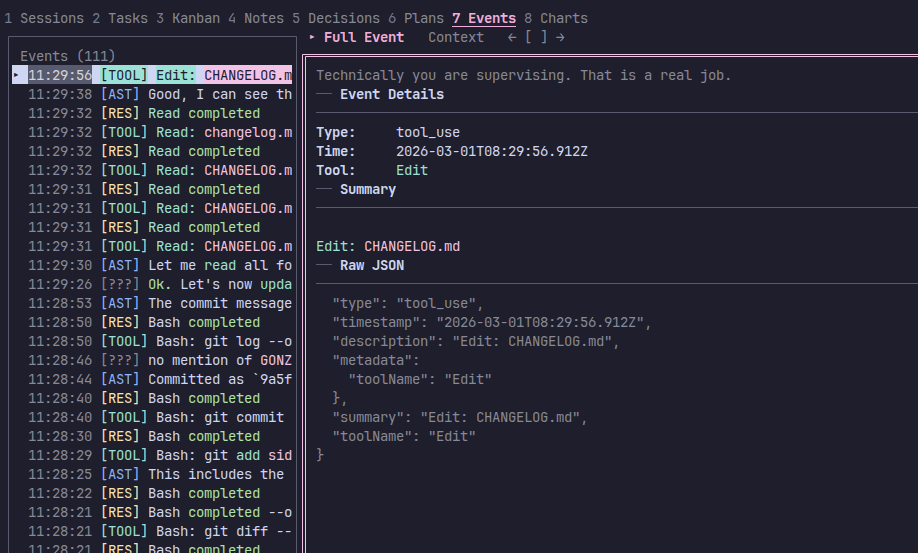
The detail pane has two tabs:
| Tab | Description |
|---|---|
| Full Event | Event metadata (type, timestamp, tool name) plus the raw JSON payload |
| Context | Three events before and after the selected event for surrounding context |
Charts (8)
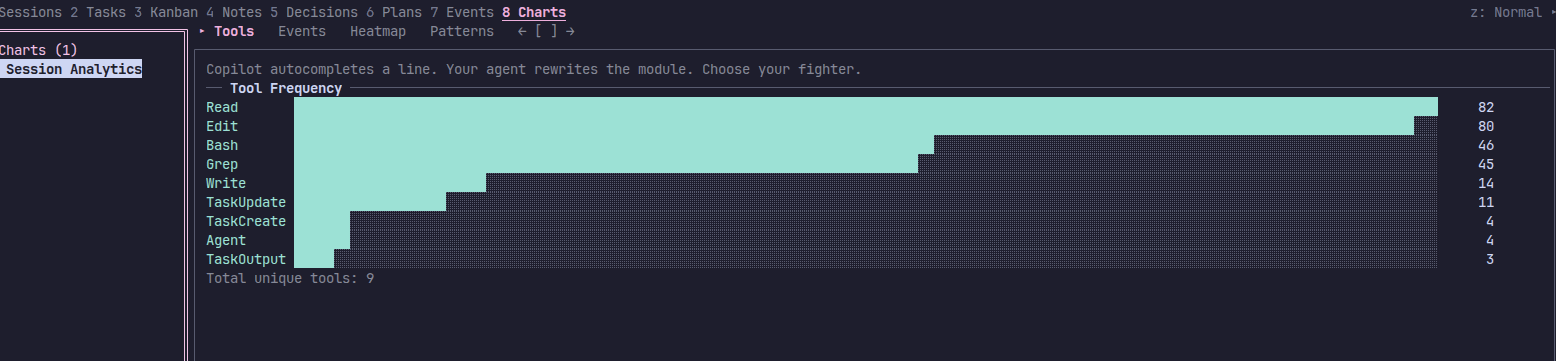
Session analytics visualized as ASCII charts. The side list shows a single "Session Analytics" item; the detail tabs contain the charts.
| Tab | Description |
|---|---|
| Tools | Horizontal bar chart of the top 10 most-used tools with counts |
| Events | Event type distribution (user, assistant, tool_use, tool_result) with percentage bars |
| Heatmap | 60-minute rolling activity heatmap using ░▒▓█ intensity characters — one column per minute with peak rate and active minute count |
| Patterns | Detected event patterns from template clustering (e.g. Read src/<*>.ts) with frequency bars and example summaries |
Keybindings
Navigation
| Key | Action |
|---|---|
1–8 |
Switch panel |
Tab |
Toggle focus between side list and detail pane |
j / ↓ |
Next item (side list) or scroll down (detail pane) |
k / ↑ |
Previous item (side list) or scroll up (detail pane) |
g |
Jump to first item / scroll to top |
G |
Jump to last item / scroll to bottom |
h / ← |
Return focus to side list (from detail pane) |
Enter |
Move focus to detail pane (from side list) |
Detail Tabs
| Key | Action |
|---|---|
[ |
Previous detail tab |
] |
Next detail tab |
Session Management
| Key | Action |
|---|---|
p |
Pin session — prevent auto-switching to the newest session |
s |
Switch to pending session (when a newer session arrives while pinned) |
f |
Toggle session filter — filter the side list to the selected session |
Session Panel — Mind Map Tab
| Key | Action |
|---|---|
v |
Cycle mind map view: tree → boxed → flow |
F |
Cycle node filter: all → file → tool → task → subagent → command → plan → knowledge-note |
Session Panel — AI Summary Tab
| Key | Action |
|---|---|
n |
Generate or retry AI narrative for the session |
Plans Panel
| Key | Action |
|---|---|
S |
Cycle plan source filter: all → claude-code → opencode → codex |
c |
Copy the selected plan's markdown to the clipboard |
Actions
| Key | Action |
|---|---|
R |
Refresh persisted project data (tasks, notes, decisions, plans) from disk |
r |
Generate HTML report for the current session and open in browser |
/ |
Open filter overlay — supports substring, fuzzy, regex, and date modes (Tab cycles modes) |
x |
Open context menu for the selected item |
z |
Cycle layout mode (Normal → Expanded → Wide Side) |
M |
Toggle mouse capture (turn off to restore terminal text selection/copy) |
A |
Open the accounts overlay (Enter switches, u undoes the last switch) |
General
| Key | Action |
|---|---|
? |
Show help overlay |
V |
Show version / changelog |
Esc |
Clear filter, close overlay, or return focus to side list |
q / Ctrl+C |
Quit (or close overlay if one is open) |
Mouse Support
The dashboard supports mouse input in terminals with SGR 1006 extended mouse encoding (most modern terminals):
- Click side list items to select them
- Click panel tabs or detail tabs to switch
- Scroll wheel in either pane to navigate (scrolls 3 items/lines at a time)
- Click anywhere to dismiss overlays (help, filter, context menu)
While capture is on, the terminal's native click-drag text selection and copy are suppressed. Press M to toggle capture off (the status bar shows MOUSE OFF), or start with --no-mouse. The M toggle persists to cli-config.json; the flag applies to that run only.
Session Management
Auto-Detection
The CLI auto-detects which session provider is most recently active by checking filesystem presence and modification times:
- Claude Code —
~/.claude/projects/ - OpenCode — OpenCode's data directory:
Linux
~/.local/share/opencode/, macOS~/Library/Application Support/opencode/, Windows%LOCALAPPDATA%\opencode\(falls back to%APPDATA%) - Codex —
~/.codex/
Override with --provider claude-code, --provider opencode, or --provider codex.
For OpenCode, the CLI reads opencode.db via sqlite3. If sqlite3 is missing or not executable in the current shell environment, the dashboard now prints an actionable OpenCode-specific notice.
Session Pinning
By default, the dashboard auto-switches to the newest session when one starts. Press p to pin the current session — the dashboard stays on it even when new sessions appear. Press s to switch to a pending session that arrived while pinned.
Session Filter
Press f to toggle session filtering, which limits the side list to items from the currently selected session. Useful when you have many sessions and want to focus on one.
Shared Data Layer
The CLI reads from the same ~/.config/sidekick/ directory as the VS Code extension. SIDEKICK_CONFIG_DIR overrides that root for both the CLI and the extension (extension support since 0.24.5), so the paths below are defaults rather than fixed locations:
| File | Contents |
|---|---|
historical-data.json |
Token/cost/tool usage statistics |
tasks/{projectSlug}.json |
Kanban board task data |
decisions/{projectSlug}.json |
Decision log entries |
accounts/accounts.json |
Multi-provider account registry (v2) |
accounts/credentials/*.credentials.json |
Backed-up OAuth credentials per Claude account |
accounts/configs/*.config.json |
Backed-up account identity per Claude account |
accounts/codex/profiles/*/codex-home/ |
Usable credentials of inactive Codex accounts (the live account keeps none) |
accounts/codex/backups/<id>.auth.json |
Private byte-preserved backup per Codex account (never used by codex) |
accounts/claude/credential-homes.json |
Ledger of every directory Sidekick put a Claude credential in (read by accounts doctor) |
accounts/{claude,codex}/switch-journal.json |
Present only while a switch is in flight; the next sync finishes or rolls it back |
quota-snapshots.json |
Cached rate-limit snapshots per provider/account |
error-history.json |
Categorized per-session error rollups for post-mortem forensics |
Any data written by the VS Code extension is visible in the CLI, and vice versa. One-shot commands read the files fresh on every run; the dashboard re-reads persisted project data every 15 seconds, or immediately when you press R.
VS Code Integration
The VS Code extension provides a command to launch the dashboard without leaving the editor:
Sidekick: Open CLI Dashboard— opens the TUI dashboard in an integrated terminal panel