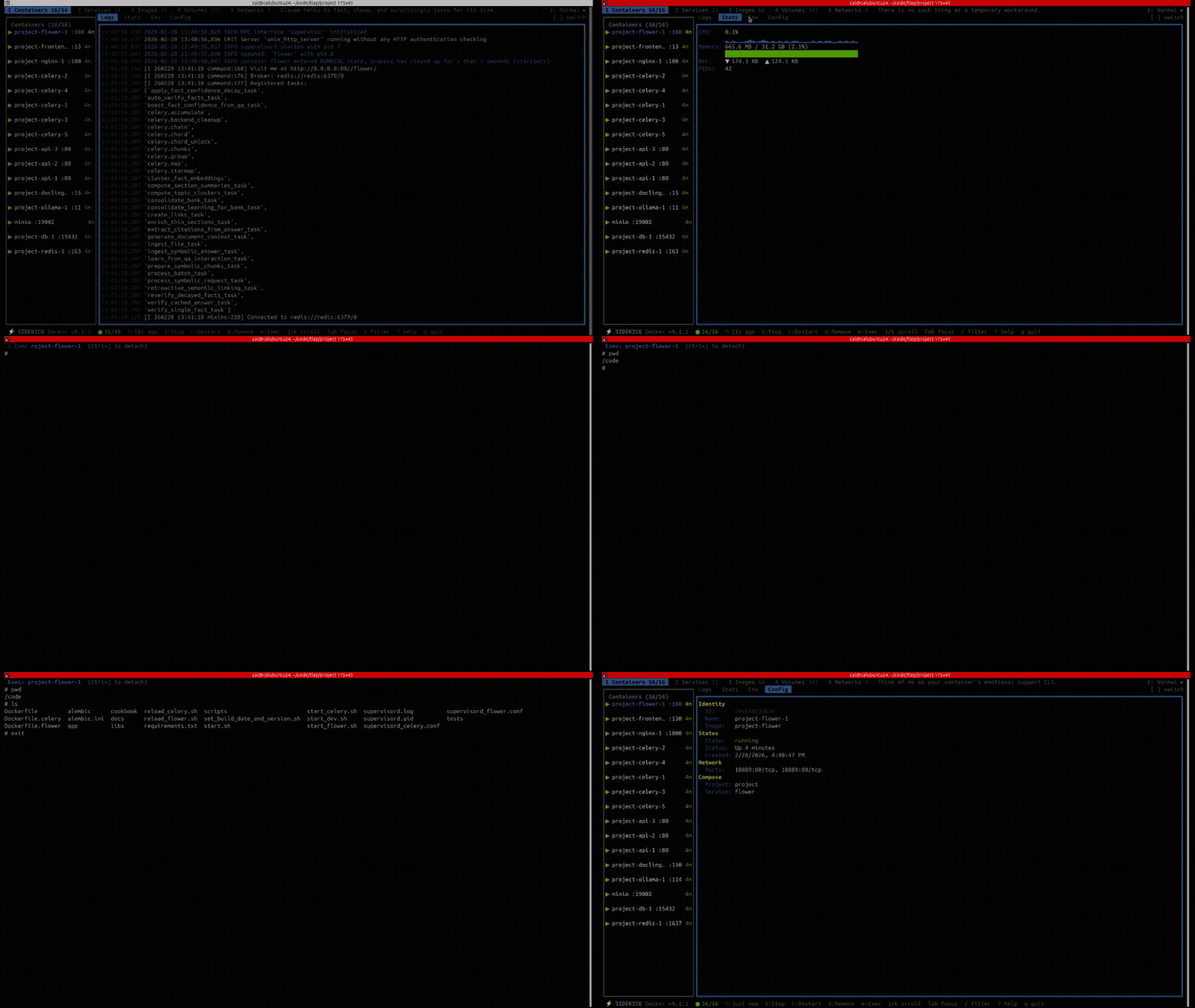
Containers Panel
The Containers panel (press 1) shows all Docker containers — running and stopped.
List Columns
Each container row displays:
- State icon (color-coded: green for running, red for stopped, yellow for other)
- Container name
- Image
- Port mappings
- Uptime / exit status
Detail Tabs
Select a container and press Enter or Tab to view its detail tabs:
Logs
Live-streamed container logs with token-level syntax highlighting. Individual tokens — HTTP methods, status codes, URLs, IPs, timestamps, JSON keys, state keywords, and file paths — are each colored distinctly, giving you immediate visual parsing of log output. The log buffer holds the most recent 1000 lines.
Logs are selection-driven — streaming starts when you select a container and stops when you navigate away.
Severity badges appear in the Logs tab header showing running counts of ERROR, WARN, INFO, and DEBUG lines, each colored by severity level.
Log filter — press f to open the filter overlay. Type a search query and press Enter to filter. Two modes are available (toggle with Tab):
- Exact — case-insensitive substring match
- Fuzzy — all words must appear in the line (AND logic), in any order
Matched text is highlighted and a match count is displayed. Press Esc to clear the filter.
Stats
Real-time CPU and memory usage rendered as sparkline charts. The stats collector maintains a 60-sample ring buffer, giving you a rolling view of resource usage.
A log severity sparkline appears below the CPU/Memory charts, showing the distribution of log severity over time. Each position is colored by the dominant severity in that time bucket (red for errors, yellow for warnings, blue for info).
Stats are also selection-driven to avoid unnecessary API overhead.
Env
Environment variables set in the container, displayed as key-value pairs.
Config
Container configuration details from docker inspect — image, command, entry point, network settings, mounts, and labels.
Patterns
Groups similar log lines into templates by replacing variable parts (IDs, IPs, timestamps) with <*> wildcards. Templates are ranked by frequency, helping you quickly identify the most common log patterns and spot anomalies.
For example, three lines like User alice logged in from 192.168.1.1, User bob logged in from 10.0.0.1, and User charlie logged in from 172.16.0.1 would be grouped into: User <*> logged in from <*> (3 occurrences).
Actions
Press x to open the context menu:
| Key | Action | Description |
|---|---|---|
s |
Start | Start a stopped container |
S |
Stop | Stop a running container |
r |
Restart | Restart a container |
R |
Remove | Remove a container (confirmation required) |
e |
Exec | Open an interactive shell inside the container |
Interactive Exec
The exec action drops you into a shell session inside the container using node-pty. It tries bash, then sh, then ash. Press Ctrl+D or type exit to return to the dashboard.